
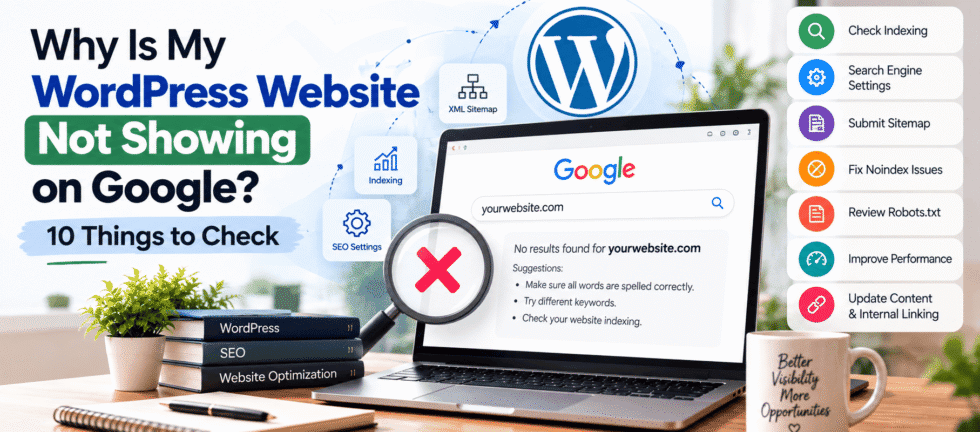
You have launched your WordPress website, published your pages and made everything look professional. But when you search for your website on Google, you cannot find it.
This can be frustrating, especially when your website is supposed to bring in new customers, generate leads or grow your business.
If your WordPress website is not showing on Google, there could be several reasons. Google may not have discovered your website yet, your pages may not be indexed, technical settings could be blocking search engines, or your content may not be competitive enough to appear in search results.
The good news is that you can investigate these issues step by step.
In this guide, we explain 10 common reasons why a WordPress website may not appear on Google and how to address them.
Why Is My WordPress Website Not Showing on Google?
A WordPress website may not appear in Google search results because it has not been indexed, search engines are blocked from crawling it, important pages contain technical errors, or the website does not rank well for the search terms you are using.
The first step is to determine whether Google has indexed your website.
1. Check Whether Google Has Indexed Your Website
Before changing your website settings, check whether Google has indexed your pages.
Open Google and search for:
site:yourdomain.com
Replace yourdomain.com with your actual domain name.
For example, if your website is example.com, search for:
site:example.com
This search can help you discover pages from your domain that Google has indexed. However, these results are not a complete indexing report.
For a more accurate diagnosis, use Google Search Console.
What should you do?
If your important pages do not appear, open Google Search Console and inspect the exact page URL using the URL Inspection tool.
Review the indexing information to understand whether Google knows about the page and whether it is eligible for indexing.
2. Check the WordPress Search Engine Visibility Setting
One common issue is accidentally telling search engines not to index your website.
WordPress includes a setting that asks search engines to discourage indexing.
To check it:
- Log in to your WordPress dashboard.
- Go to Settings.
- Select Reading.
- Find the Search engine visibility option.
- Make sure “Discourage search engines from indexing this site” is unchecked if you want your public website indexed.
This setting is a request to search engines rather than an absolute technical block, but it can still interfere with your SEO intentions.
Tip: Check this setting after launching a new website or moving from a staging environment to a live domain.
3. Set Up Google Search Console
Google Search Console is a free tool that helps website owners understand how Google discovers, crawls and indexes their pages.
It can help you:
- Inspect individual URLs.
- Review indexing issues.
- Submit your XML sitemap.
- Identify crawling errors.
- Monitor Google Search impressions and clicks.
- Understand which search queries bring visitors to your website.
After verifying your website, open the URL Inspection tool and enter a page that is not appearing on Google.
Review the indexing information and follow the recommended troubleshooting steps.
If the page is eligible for indexing after you have fixed any problems, you can request indexing.
Requesting indexing does not guarantee that Google will index the page or display it in search results.
4. Submit Your XML Sitemap
An XML sitemap helps search engines discover important URLs on your website.
If you use an SEO plugin such as Rank Math, your sitemap may already be generated automatically.
Common sitemap URLs include:
https://yourdomain.com/sitemap_index.xml
or
https://yourdomain.com/wp-sitemap.xml
Your actual sitemap URL depends on your website configuration and plugins.
To submit it:
- Open Google Search Console.
- Select your website property.
- Go to Sitemaps.
- Enter the sitemap path.
- Submit it and review the status.
Make sure you submit the correct sitemap for your website.
A sitemap helps Google discover URLs, but it does not guarantee that every URL will be crawled or indexed.
5. Check for Noindex Tags
A page may be excluded from Google because it contains a noindex directive.
This can happen because of SEO plugin settings, page-level settings or other website configurations.
If an important page is marked noindex, search engines are instructed not to include it in their search results.
How to fix it:
- Open your WordPress SEO plugin settings.
- Check the indexing settings for the affected page.
- Make sure important public pages are allowed to be indexed.
- Review the page’s robots meta tag or HTTP headers if necessary.
- Use Google Search Console to inspect the URL again.
Do not remove noindex directives indiscriminately. Some pages should intentionally remain outside search results.
6. Check Your Robots.txt File
The robots.txt file provides crawling instructions to search engine crawlers.
An incorrectly configured file may prevent Google from crawling important parts of your website.
You can usually check it at:
https://yourdomain.com/robots.txt
Review whether important website sections are unintentionally blocked.
A rule blocking the entire website could prevent Googlebot from crawling your pages.
However, robots.txt and noindex are different. Blocking crawling does not reliably remove a page from Google’s index, and Google may still discover a blocked URL through other links.
If you are unsure about the configuration, have a WordPress developer review it before making changes.
7. Make Sure Your Website Is Accessible
Google needs to access your public website to crawl its content.
Technical problems can prevent this from happening.
Check for:
- Server errors such as HTTP 500.
- Pages returning a 404 error.
- Redirect loops.
- Incorrect domain redirects.
- SSL certificate problems.
- Hosting downtime.
- Password-protected pages.
- Firewall or security settings that block legitimate crawlers.
Also check whether your website works correctly on desktop and mobile devices.
If Google cannot reliably access important pages, resolving the underlying technical issue should be a priority.
8. Improve Your Content Quality and Search Intent
Sometimes a website is indexed but still does not appear prominently in search results.
This is different from an indexing problem.
Google may have indexed your page, but it may not rank well for the search query you are targeting.
For example, a page that only says “We offer professional website services” provides little detail about what the service includes or who it helps.
Improve your content by answering the questions your potential customers actually have.
For a WordPress development service page, consider explaining:
- What services you provide.
- Which types of businesses you work with.
- What problems you solve.
- Your development process.
- Relevant project examples.
- Common customer questions.
- How people can contact you.
Avoid copying content from competitors or publishing several pages with nearly identical wording.
Useful, original content that demonstrates relevant experience is a stronger long-term approach than repeating keywords.
9. Improve Internal Linking
Internal links connect related pages on your website.
They help visitors discover useful information and help search engines understand relationships between your pages.
For example, a blog about WordPress indexing problems could link to your WordPress Development Services page when discussing technical website fixes.
You can also link to relevant articles about website speed, website maintenance and technical SEO.
Use descriptive anchor text that explains what the destination page offers.
Avoid adding irrelevant links or repeating the same exact-match keyword in every link.
A well-organized website makes it easier for visitors and search engines to navigate your content.
10. Improve Website Performance and Mobile Usability
Website speed alone does not guarantee better Google rankings, but performance and usability are important parts of a healthy website.
Review your website for:
- Large, unoptimized images.
- Excessive plugins.
- Unnecessary scripts.
- Poor mobile layouts.
- Difficult navigation.
- Layout shifts.
- Slow server response.
- Broken forms or buttons.
You can use Google PageSpeed Insights to review performance and Core Web Vitals information.
Focus on real issues identified by testing rather than installing multiple optimization plugins without a clear reason.
If your website has major technical problems, a WordPress developer can help diagnose the cause and implement appropriate improvements.
How Long Does Google Take to Index a WordPress Website?
There is no fixed timeline for indexing a new website or an updated page.
Google may discover and index a page relatively quickly, while other pages may take longer or may not be indexed at all.
The timing depends on factors such as crawl accessibility, site structure, content quality and Google’s indexing systems.
You can help Google discover your website by:
- Verifying your site in Google Search Console.
- Submitting an XML sitemap.
- Fixing crawling and indexing errors.
- Adding relevant internal links.
- Publishing useful original content.
- Keeping important pages accessible.
Avoid repeatedly requesting indexing without fixing the underlying issue.
Frequently Asked Questions
Why is my new WordPress website not appearing on Google?
A new website may not have been discovered or indexed yet. Check Google Search Console, submit your sitemap, review search engine visibility settings and make sure Google can access your pages.
How do I get my WordPress website indexed by Google?
Verify your website in Google Search Console, inspect important URLs, submit your XML sitemap and fix any indexing or crawling problems. Request indexing for eligible pages when appropriate.
Does installing an SEO plugin make my website rank on Google?
No. SEO plugins can help manage metadata, sitemaps and other SEO settings, but installing a plugin does not guarantee indexing or rankings.
Why is my website indexed but not ranking?
Your page may not be sufficiently relevant or competitive for the search query. Review search intent, content quality, internal linking, technical SEO and competing search results.
Can website speed affect Google rankings?
Website performance and Core Web Vitals can contribute to page experience, but speed alone does not guarantee rankings. Content relevance and many other factors also matter.
Should I hire a WordPress developer to fix indexing issues?
You may need a developer if the problem involves robots directives, server errors, redirects, plugin conflicts, theme code or other technical issues. Straightforward Search Console checks can often be performed by the website owner.
Final Thoughts
If your WordPress website is not showing on Google, do not immediately assume that you need a complete redesign.
Start by checking whether Google has indexed your pages. Then investigate search engine visibility settings, noindex directives, robots.txt, your sitemap and any accessibility problems.
If your website is indexed but not ranking, focus on useful content, relevant search intent, internal linking and technical performance.
A structured diagnosis can help you identify the actual problem before spending time or money on unnecessary changes.
Need Help With Your WordPress Website?
I’m Shweta Gupta, a freelance WordPress and Shopify developer. I help businesses build, customize, optimize and maintain professional websites.
If your WordPress website has technical issues, needs a redesign or requires performance improvements, explore my WordPress development services to learn how I can help.
Ready to improve your website? Get in touch to discuss your requirements.